
Introduction
Nintendo Switch gamers frequently face storage challenges that can impact their gaming enjoyment. As game sizes and updates expand, upgrading to a bigger SD card becomes essential. This guide will help you select the optimal SD card, understand key specifications, and seamlessly install it to improve your gaming experience.
Why You Need a Bigger SD Card for Nintendo Switch
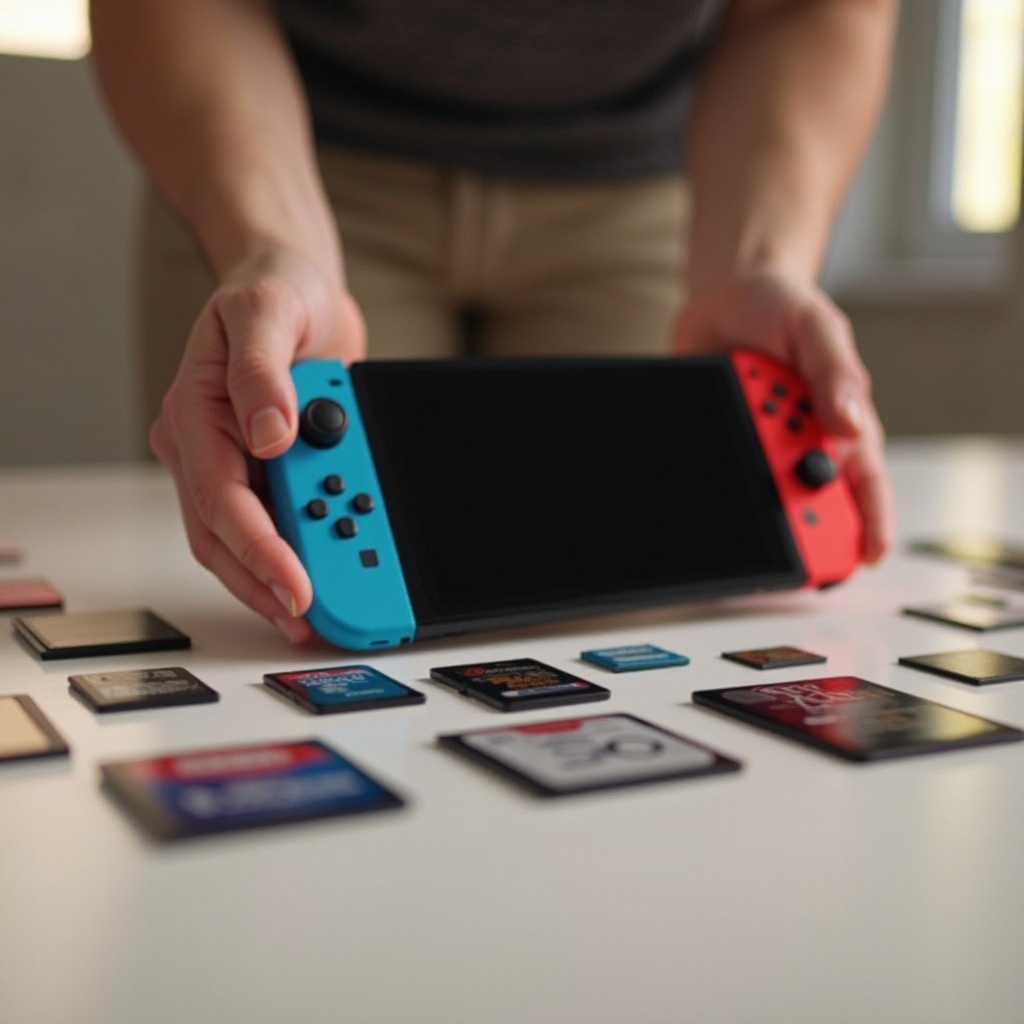
For Nintendo Switch enthusiasts, a bigger SD card is a vital asset for downloading games and updates without hassle. Standard Switch models offer limited internal storage, which quickly fills up due to increasingly larger games and frequent updates. Additionally, DLCs and digital games can rapidly consume available storage space. With a bigger SD card, you can expand your game library without the constant worry of running out of room, focusing more on gaming fun instead of storage management.
Understanding the necessity of a bigger SD card sets the stage for diving into the specifics that ensure you make the right choice for your Nintendo Switch storage needs.
Understanding SD Card Specs: What to Look For
Types of SD Cards: SD, SDHC, and SDXC
As you explore SD card options, you will encounter three main types: SD, SDHC, and SDXC. The differences lie in their storage capacity. SD cards offer up to 2GB, SDHC provides between 4GB and 32GB, while SDXC cards, perfect for gaming enthusiasts, range up to 2TB. Recognizing these types helps you match the card to your gaming and storage needs.
Storage Capacity: How Much is Enough?
Choosing the right storage capacity revolves around your gaming patterns. A 64GB or 128GB card is usually enough for casual gamers. Those with larger collections might opt for 256GB or higher to store more games and content comfortably. Evaluating your current game library and expected future downloads ensures you select a card size that caters to your long-term needs without frequent upgrades.
Speed Classes and Performance Impact
Speed class indicates how quickly an SD card reads and writes data, affecting game load times and overall performance. For an optimal gaming experience, choose a Class 10 card minimum. The UHS Speed Class U1 or U3 and Video Speed Class V30 or above are ideal for smooth gameplay. Higher speed classes mean more responsive downloads and seamless in-game action.
With these specifications in mind, let’s explore some top-performing SD card options available in 2024.
Top Recommended SD Cards for Nintendo Switch in 2024
Best Overall: SanDisk Extreme Pro
The SanDisk Extreme Pro is widely favored for its high performance and reliability. It offers fast read/write speeds and up to 1TB of storage, making it an excellent choice for serious gamers wanting swift game loading times and ample storage space.
Best Budget Option: Samsung EVO Select
For gamers on a budget, the Samsung EVO Select provides a perfect mix of cost-effectiveness and performance. Its substantial speeds and capacities reaching 512GB make it one of the more economical choices, without compromising on quality.
Best for Speed: Kingston Canvas React Plus
Kingston Canvas React Plus specializes in top-notch speed, handling large game files effortlessly. It’s an excellent pick for gamers prioritizing fast performance, ensuring game data transfers, and loading times are swift and efficient.
Having selected an SD card, it’s vital to understand how to install and optimize it for your handheld console.
How to Install and Format an SD Card on the Nintendo Switch
Preparing Your Device
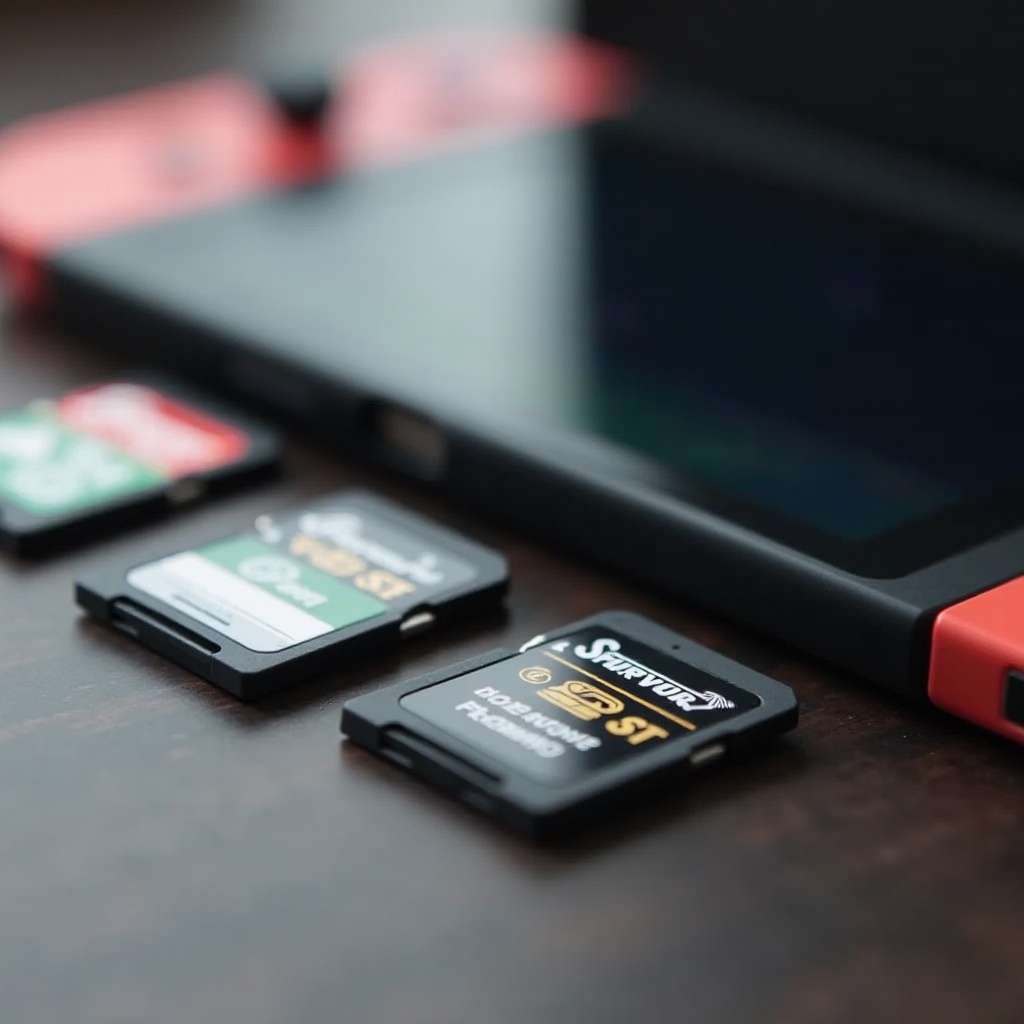
Before you install, ensure the Nintendo Switch is completely powered off to prevent any risk of data loss. Make sure you have your new SD card ready.
Step-by-Step Installation Guide
- Turn off the Nintendo Switch.
- Locate the microSD card slot under the kickstand at the back of the console.
- Insert the SD card into the slot until it clicks securely.
Formatting Your New SD Card
After inserting the card, power on your Switch and follow these steps to format it:
- Go to System Settings from the home screen.
- Navigate to System and select Formatting Options.
- Choose Format microSD Card and confirm the action.
Formatting the card ensures proper functionality with the Switch, preparing it for efficient data management.
With the SD card now set up, managing your game data effectively on this expanded storage follows logically.
Managing Your Switch Game Data with an SD Card
To maintain optimal Switch performance, manage your game data proficiently. Direct new downloads to the SD card by adjusting the settings in System Settings. For existing games, delete them from the internal memory and redownload them to store them on the SD card, ensuring seamless gameplay and plenty of space for future titles, updates, and DLCs.
Conclusion
Upgrading to a bigger SD card can transform your Nintendo Switch experience, offering more storage and faster loading times while keeping your game library well-organized. Make the smart choice to upgrade and keep your gaming setup ready for future gaming adventures.
Frequently Asked Questions
How do I transfer games from internal storage to my SD card?
To transfer games, first delete the game from the internal storage. Then, redownload it from the Nintendo eShop, directing the download to the SD card.
What is the maximum SD card size supported by the Nintendo Switch?
The Nintendo Switch supports microSDXC cards up to 2TB, providing extensive storage options for large game collections.
Can I use the same SD card on multiple Nintendo Switch devices?
Yes, you can use the same SD card on multiple devices. However, you will need to format it to work with each system individually, as game data is not transferable between consoles.