
Introduction
Alexa, the voice-activated assistant by Amazon, is a staple in many smart homes, providing convenience through voice commands. However, encountering a red light can be confusing and disrupt the seamless experience Alexa promises. The red light often signifies an issue that requires your attention, such as connectivity or hardware problems. This guide will walk through the common causes and solutions to this issue, ensuring your Alexa device is back to optimal performance.
Understanding the Red Light on Alexa
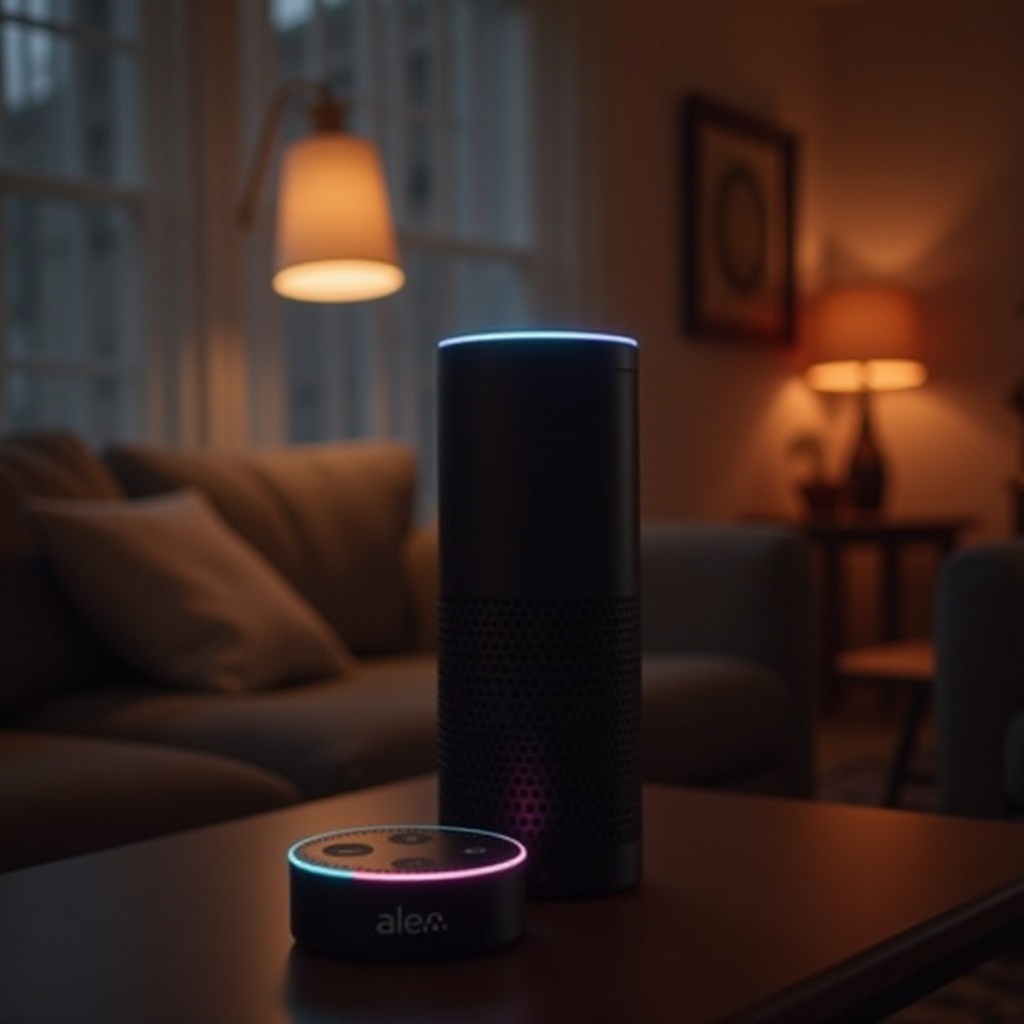
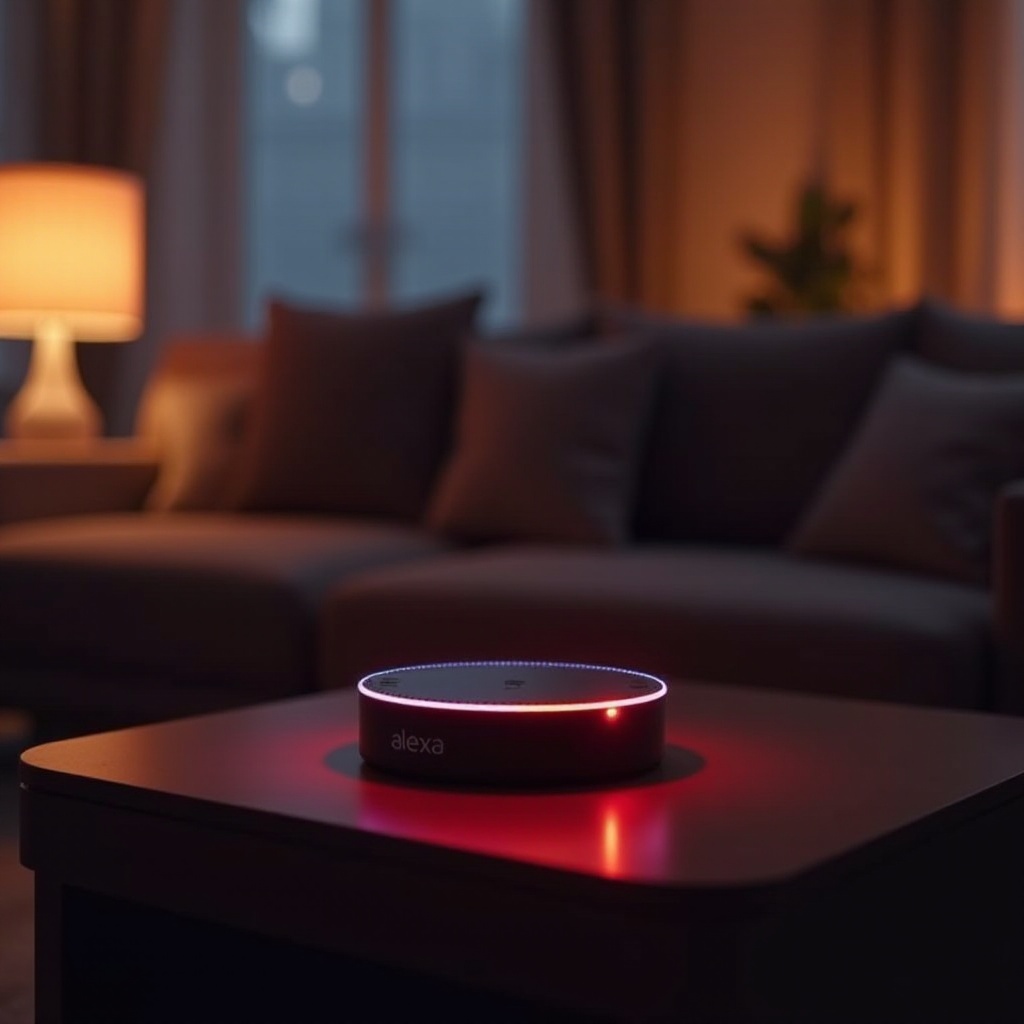
The presence of a red light on your Alexa device is an alert that something is amiss. Generally, it may indicate a microphone issue or connectivity problem, and addressing it promptly is essential. By understanding the significance of this light, you can act faster and prevent prolonged downtime.
Common Reasons for the Red Light
Diagnosing the cause of the red light involves understanding the common culprits, such as:
-
Microphone Disconnection: This occurs when the microphone is manually disabled by pressing the microphone button at the top of the device, preventing Alexa from receiving commands.
-
Network Connectivity Issues: If your device loses its internet connection, the red light might appear, signaling a connectivity issue that needs addressing to restore functionality.
-
Software Glitches: Software errors or outdated firmware can also trigger the red light. Ensuring your device’s software is updated can help prevent such occurrences.
Understanding these reasons is key to determining the right troubleshooting steps.
Basic Troubleshooting Steps
Before proceeding to more complex solutions, these basic troubleshooting steps can often resolve the issue:
-
Check Power and Connections: Confirm that your device is connected to power and all cables are properly connected. Loose or disconnected cables may lead to the red light.
-
Restarting the Device: A simple reboot can resolve temporary software glitches. Unplug your device, wait a few seconds, and then plug it back in to restart it.
-
Enabling the Microphone: Ensure the microphone is turned on. Press the microphone button to activate it. If the red light disappears, this confirms the issue was due to a disabled microphone.
Advanced Solutions for Red Light Issues
If the basic steps do not work, try these advanced solutions:
-
Firmware Update Procedures: Always keep your device’s firmware updated to prevent errors. Open the Alexa app, navigate to settings, and check for any pending updates.
-
Performing a Factory Reset: If other measures fail, a factory reset might be necessary. This restores the device to its original settings, removing any persistent glitches. Locate the reset button, press it, and hold until the light changes to orange.
-
Reconfiguring Alexa Settings: Go through the setup process again using the Alexa app. Reconfiguring settings can resolve issues related to initial configuration errors.
These steps will help resolve persistent red light issues, restoring your device to full functionality.
Preventative Measures to Avoid Red Light Problems
To prevent future occurrences of the red light, consider these maintenance tips:
-
Regular Software Updates: Enable automatic updates in the Alexa app to keep your device software current.
-
Device Maintenance Tips: Place your Alexa device in a central, unobstructed location with a strong Wi-Fi signal. Regularly dust the device to prevent clogging and overheating issues.
By keeping the device well-maintained, you can reduce the likelihood of encountering the red light problem again.
When to Contact Amazon Support
If all else fails, reaching out to Amazon support is a viable option:
-
Understanding Warranty Options: Check your warranty status. If the device is under warranty, you might qualify for free repairs or a replacement.
-
Preparing for Customer Support Interaction: Before contacting support, gather all pertinent information about your device, including model and serial numbers, and have a description of the issue ready. This preparation ensures a more effective support session.
Should you need professional assistance, these steps will better prepare you for working with support staff.
Conclusion
Encountering a red light on your Alexa device can be frustrating, but by following the steps outlined above, you can resolve the issue efficiently. From basic troubleshooting to contacting Amazon support, this guide equips you with the knowledge to address and prevent red light issues. Regular maintenance and updates are crucial in keeping your Alexa device functioning optimally.
Frequently Asked Questions
Why does my Alexa have a red light and how can I fix it?
The red light usually indicates microphone disconnection or network issues. Start by checking the microphone button and ensuring a solid internet connection.
Is a factory reset always necessary for fixing the red light issue on Alexa?
Not always. Basic troubleshooting and firmware updates can resolve many issues. A factory reset is a last resort when other solutions fail.
How often should I update Alexa to prevent the red light problem?
Regular updates are recommended. Enable automatic updates in your settings to ensure your device remains current and functions correctly.