
Introduction
Does it frustrate you when your phone’s screen goes dark just as you’re in the middle of something important? Whether you’re deeply engaged in reading, engrossed in a video, or following a recipe, having the screen turn off can be a real interruption. Fortunately, managing your phone’s screen timeout settings can enhance your experience by keeping your screen active longer.
In this article, we’ll guide you through steps to adjust screen timeout settings on both iOS and Android devices. We’ll also touch on third-party apps that offer extra control and provide tips to help balance screen time with battery life.
Understanding Screen Timeout
Screen timeout settings determine how long your device stays awake when not in use. Typically, these are preset to conserve energy, balancing usability and battery life. However, these defaults don’t always support extended tasks that require continuous screen activity.
Knowing how these settings work allows you to adjust them to fit your lifestyle better. By understanding the functionality available on both iOS and Android, you can optimize your phone’s performance according to your personal needs.
How to Change Screen Timeout on iOS Devices
For iPhone and iPad users, modifying screen settings is straightforward. Use these steps to prevent your device from turning off automatically:
-
Open Settings: Launch the ‘Settings’ app on your device.
-
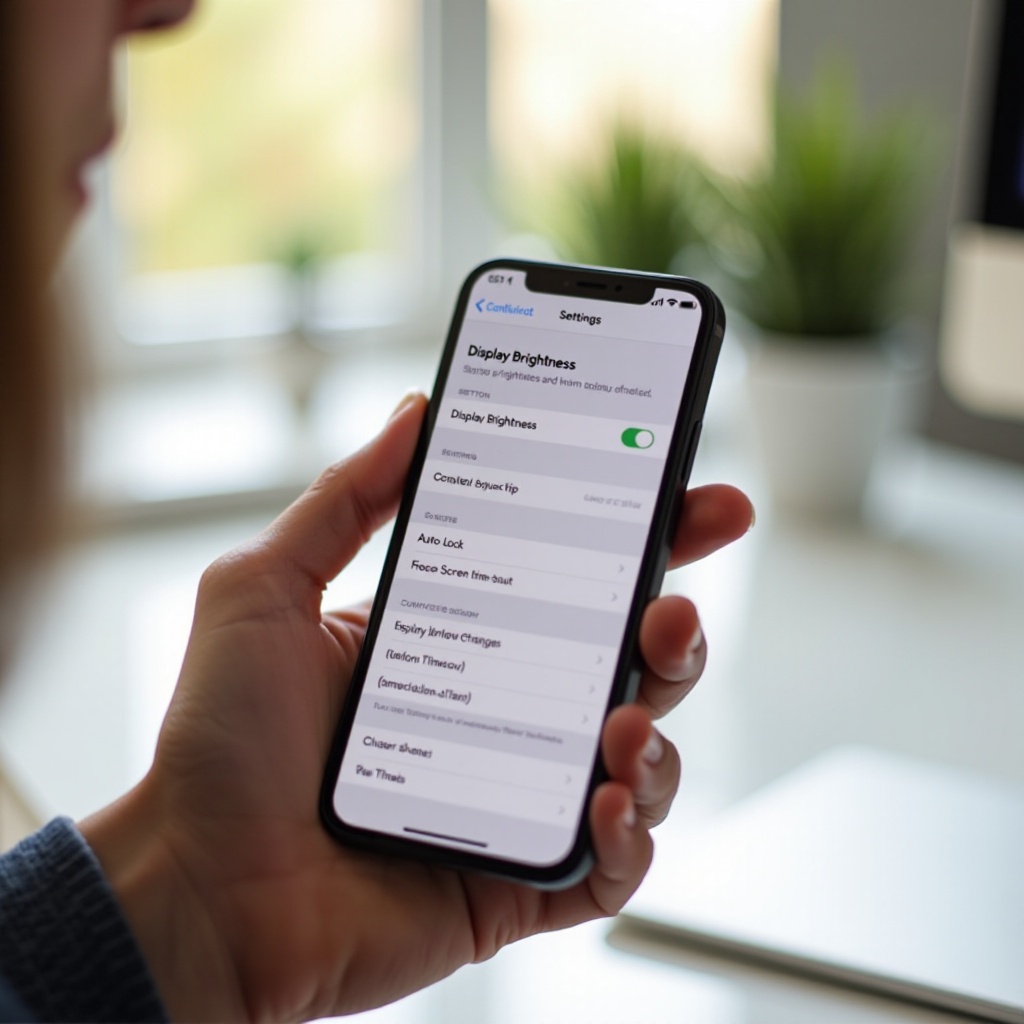
Go to Display & Brightness: Scroll down to select ‘Display & Brightness.
-
Adjust Auto-Lock Settings:
- Tap ‘Auto-Lock.
-
Choose your desired time interval, or select ‘Never’ to keep the screen on indefinitely.
-
Explore Other Features:
- Features like ‘Guided Access’ can help keep the display active during specific tasks, such as presentations, by locking the device into a single app mode.
Moving from iOS to Android, you’ll notice both similar options and distinct features which offer further customization.
How to Change Screen Timeout on Android Devices
Android devices offer a broad range of customization options thanks to various operating system versions and device manufacturers. Here’s how you can adjust your screen timeout settings:
-
Open Settings: Access ‘Settings’ on your Android phone.
-
Select Display: Tap on the ‘Display’ menu.
-
Choose Sleep or Screen Timeout: Depending on your device, find and select ‘Sleep’ or ‘Screen Timeout.
-
Set the Desired Interval: Pick a suitable time from the list or use features like ‘Keep Screen On.
-
Check for Specific Features in Your Device:
- Some brands, like Samsung, have ‘Smart Stay,’ which uses the front camera to detect if you’re looking at the screen to prevent it from going to sleep.
While built-in system settings are useful, third-party apps can extend these functionalities, adding an additional layer of convenience.
Third-Party Apps and Tools
For those seeking even more flexibility, third-party applications can provide enhanced control over how and when your screen stays on. Here’s a look at some popular options:
-
Stay Alive! Keep Screen Awake (Android): Ensures screen activity across different apps with preferences that override defaults.
-
Wakey – Keep Your Screen On (Android): Offers customization for screen activity under specific conditions.
-
Caffeine (iOS): Although iOS is more restricted, apps like Caffeine offer creative solutions for maintaining screen light when necessary.
These applications not only offer convenience but also provide advanced features to manage screen behavior in ways the default settings might not allow. However, using them efficiently is crucial to avoid adverse effects on your phone’s power usage.
Managing Battery Life vs. Screen Activation
Prolonging screen activation can increase power consumption, leading to a shorter battery life. Balancing these factors is critical for effective device management. Consider the following strategies:
-
Adjust Screen Brightness: Reducing brightness or using ‘Auto-Brightness’ can preserve battery.
-
Enable Battery Saver: Use power-saving modes that limit background activity but still allow essential functions.
-
Minimize Background Processes: Restrict unnecessary app processes, so they don’t deplete your battery when your screen is on.
Keeping the screen on while being mindful of these battery management techniques can greatly enhance your device’s functionality without sacrificing too much power.
Troubleshooting Common Issues
Even with careful setup, there might be times when your phone doesn’t respond to screen timeout settings as expected. Here’s how to troubleshoot common issues:
- If Settings Don’t Apply:
- Restart your device to refresh settings.
-
Make sure your operating system is up to date.
-
Persistent Screen Off Issues:
- Check if power-saving modes might be actively overriding user defaults.
- Review app permissions, as some apps can interfere with settings.
Addressing these issues can ensure a smoother experience with your smartphone, keeping it ready for use whenever you need.
Conclusion
Customizing your phone’s screen timeout settings can greatly improve usability, especially for tasks that need uninterrupted activity. By leveraging both built-in options and third-party tools, you can finely tune your device to match your specific needs while conserving battery effectively.
Frequently Asked Questions
How do I prevent my phone from locking during calls?
Check your phone’s display settings to disable locking during a call or app usage.
Can keeping my screen on for too long damage my phone?
Extended screen use can lead to overheating and impact battery life, so regular breaks are recommended.
What are the best third-party apps to manage screen timeout settings?
Apps like ‘Stay Alive!’ and ‘Caffeine’ are popular for extending screen activity with additional features.