
Introduction
Transforming your smartphone into a secondary monitor is a smart strategy for enhancing productivity without needing extra equipment. Whether you’re managing remote work, frequently traveling, or confined by limited workspace, repurposing your smartphone as an additional screen offers a flexible and cost-effective solution. This article will guide you through the necessary setup processes, highlight useful applications, and provide troubleshooting tips to ensure you gain maximum efficiency from this setup.
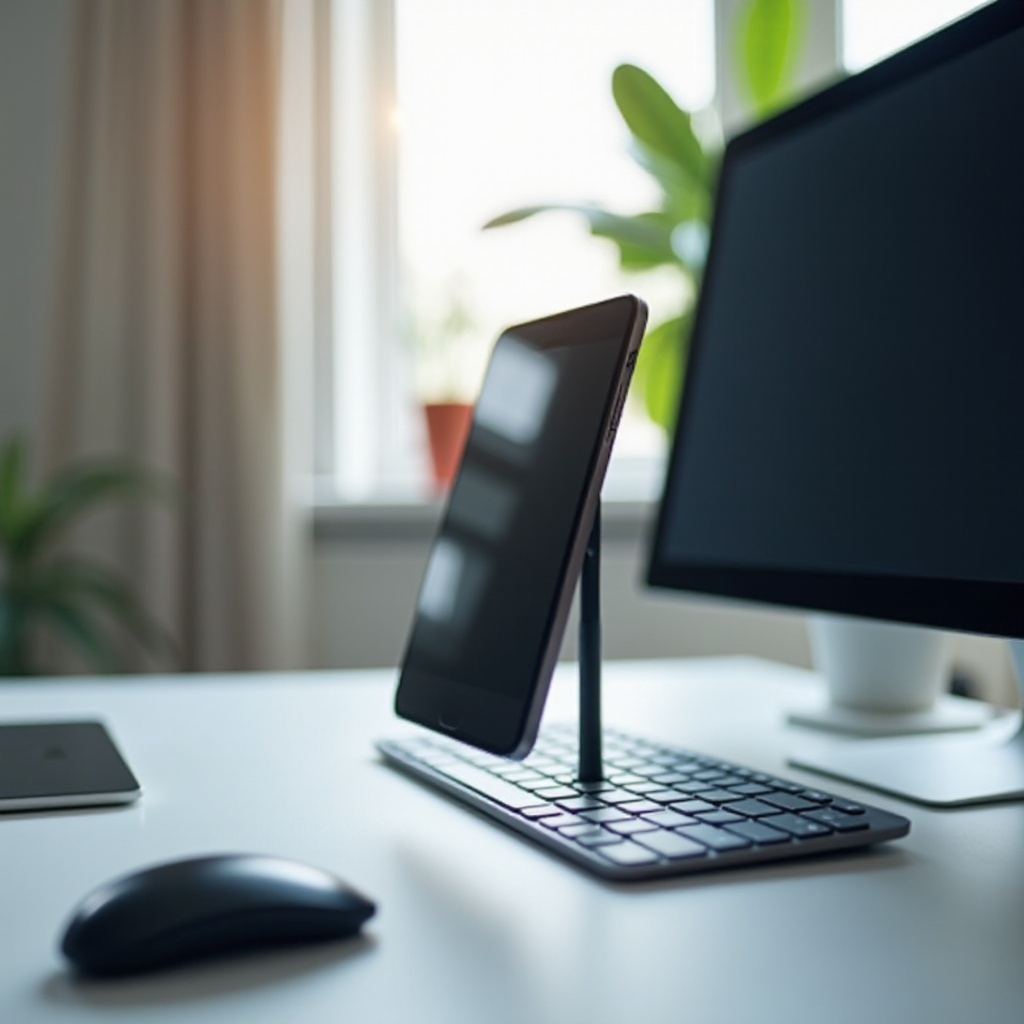
Why Use Your Phone as a Monitor?
Smartphones have become indispensable tools in our daily routines. As monitors, they offer several advantages. Multi-screen setups efficiently boost productivity, allowing smoother multitasking and management of multiple applications simultaneously. This method is exceptionally flexible, ideal for professionals who are often on the move or who work in spatially constrained environments.
Another significant benefit is cost-effectiveness. Instead of buying additional screens, you make use of a device you already own. The portability factor is a major advantage, enabling a mobile workstation setup almost anywhere. Understanding these benefits highlights why adopting this approach is increasingly popular.
With the benefits in mind, let’s explore what you need to set up your phone as a monitor.
Compatibility and Requirements
Before initiating the setup, ensure both your smartphone and computer meet certain compatibility prerequisites. Key considerations include:
- Smartphone Compatibility: Modern devices, both iOS and Android, often support functioning as monitors. However, older models might lack the required hardware support.
- Operating System: Ensure your smartphone is updated to the latest OS for optimal functionality.
- Computer Compatibility: Your computer’s OS must include screen-sharing capabilities. Both Windows and macOS users typically have this option.
- Internet Connection: A strong internet connection enhances performance, especially necessary for wireless connections. A robust Wi-Fi or Bluetooth connection enhances performance.
- Applications: Specific apps are essential for the phone monitor transformation, which we’ll explore in detail next.
Once you’ve assured compatibility, you’re ready to move on to the setup process.
Step-by-Step Guide to Setting Up Your Phone as a Monitor
Setting up your phone as a monitor involves a few simple steps:
- Ensure Compatibility: Double-check that your phone and computer meet the above requirements.
- Download Necessary Apps: Use applications designed to connect phones as monitors. We’ll review the top app selections next.
- Install and Configure:
- App Installation: Install the relevant app on both your smartphone and computer.
- Device Connection: Connect your devices via USB or Wi-Fi.
- Adjust Display Settings: Configure display settings to your liking, ensuring preferred resolution and orientation.
- Connection Test: Open the app to confirm the connection’s stability and responsiveness.
After successfully connecting, let’s evaluate some top apps that can enhance this setup.
Best Apps for Turning Your Phone into a Monitor
Selecting the right app is crucial for optimizing your phone monitor experience. Here are some top recommendations:
- Duet Display: Available for both iOS and Android, Duet Display allows for seamless phone-to-monitor use, supporting multiple connection options, such as USB and Wi-Fi, for smooth and responsive functioning.
- Spacedesk: This app transforms any smartphone into an extra screen for your Windows PC, offering both wired and wireless connections as well as touch input for added interaction.
- Splashtop Wired XDisplay: A budget-friendly choice, this app enables you to use your phone or tablet over a USB connection as a second monitor, providing excellent display quality and reliability.
Once you pick an app, download it according to the previous setup instructions and enjoy your enhanced productivity setup. Let’s see how this arrangement can boost productivity.
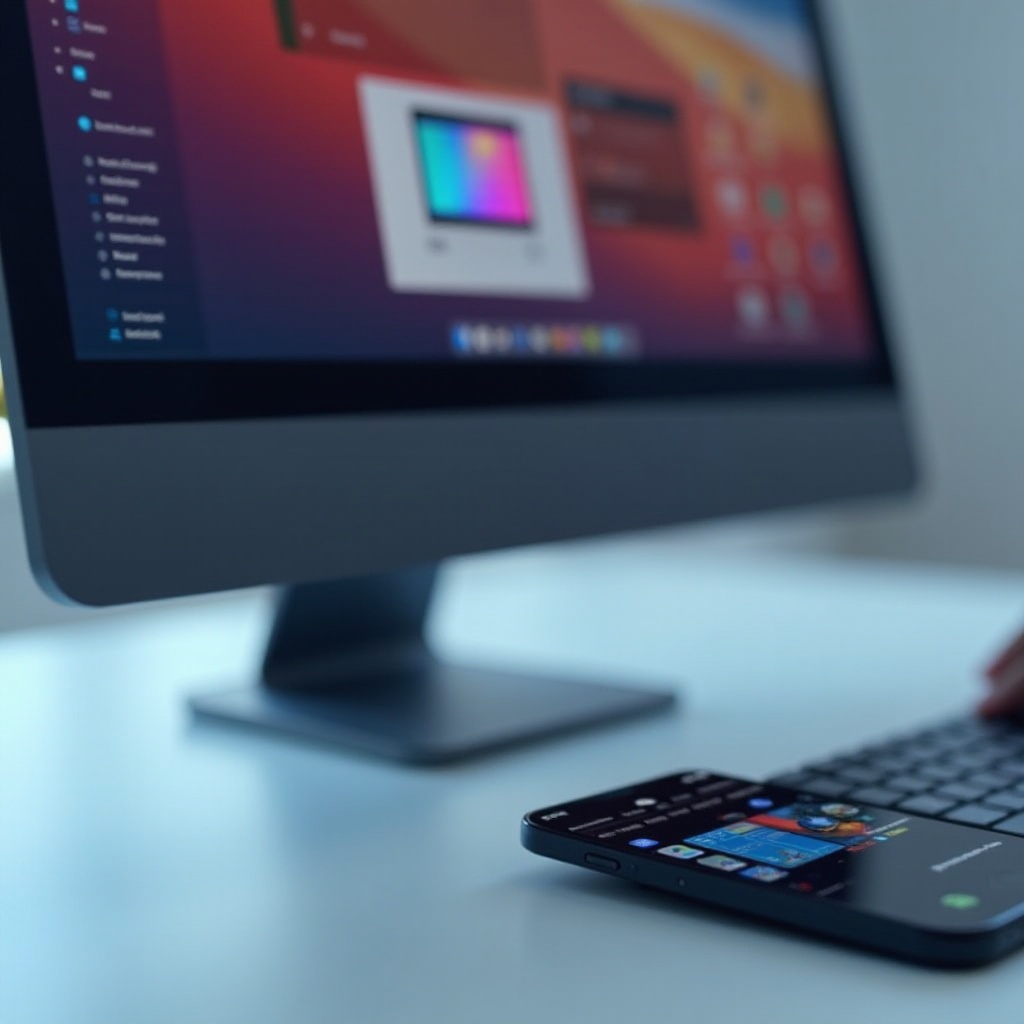
Practical Applications and Productivity Benefits
Using your phone as a monitor opens up various productivity improvements. Here are effective ways to utilize this setup:
- Ideal Tasks for Secondary Display: It’s perfect for monitoring emails, social media, or reference materials while focusing on tasks on your primary screen. This additional workspace can be invaluable for video editing, software development, or financial analysis.
- Multitasking and Workflow Enhancement: A dual-display arrangement simplifies your workflow by diminishing the need for constant tab switching, enabling simultaneous task management and boosting overall efficiency.
Understanding these applications and benefits supports the broader productivity case. Next, we’ll look at addressing potential technical challenges.
Troubleshooting Common Problems
Despite its benefits, using your phone as a monitor might present challenges. Here are solutions to common issues:
- Connectivity Issues: Having trouble connecting your devices? Check all cables and settings, ensuring that both devices share the same Wi-Fi network, or try switching to a USB connection for stability.
- Display Settings: Inaccurate resolution or display alignment can usually be fixed by adjusting settings within the app or on your devices.
- Performance Optimization: If you notice lagging or slow response times, a wired connection is preferable as it offers better speed, and ensure all software is the latest version.
Overcoming these hurdles ensures a smooth experience, prepping you to fully enjoy the increased productivity this tool offers.
Conclusion
Using your phone as a monitor offers a smart, economical path to boosting efficiency. Understanding how to set up your device, selecting the right apps, and resolving possible issues empowers you to fully leverage your smartphone’s capabilities. This not only saves money but also makes your workspace more adaptable and flexible.
Frequently Asked Questions
Can any smartphone be used as a monitor?
Most modern smartphones running the latest iOS or Android can be used. Older models may lack necessary features.
Do I need to worry about data security when using these apps?
Reputable apps have security measures, but ensure connections and apps are updated to reduce risks.
How can I fix lag issues with my phone monitor setup?
Ensure a strong connection, use a wired setup if possible, and keep your phone’s and computer’s software updated.