
Introduction
Read receipts in iMessage notify senders when their messages are read. While useful, they can infringe on your privacy and create unnecessary pressure to respond quickly. If you’re looking for more control over your communication style, it’s vital to know how to disable these notifications. This guide will provide detailed steps to turn off read receipts globally and for specific contacts, discuss privacy implications, and offer solutions to common issues you may encounter.
Understanding Read Receipts in iMessage
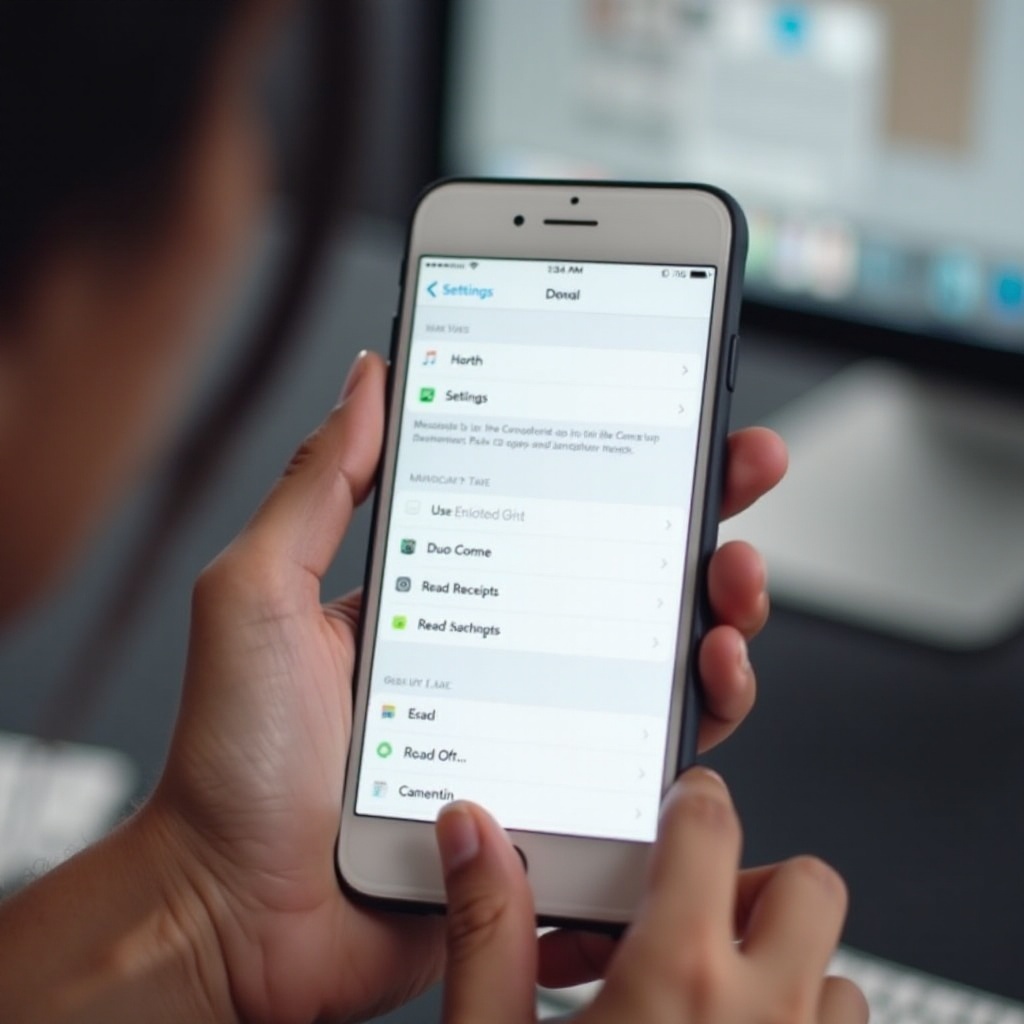
Read receipts are a feature that allows message senders to see when their text has been read by the recipient. This feature is prevalent across Apple devices and is, by default, enabled. Understanding this functionality is crucial before altering its settings.
In iMessage, read receipts provide real-time confirmation to the sender. This transparency can enhance communication efficiency but might lead to unwanted expectations or pressure. This section helps clarify whether you should adjust this setting, setting the stage for managing your preferences effectively. The next steps detail how to turn off read receipts universally.
Steps to Turn Off Read Receipts on iPhone
To disable read receipts for all contacts, follow these simple steps:
- Access Settings:
- Open your iPhone’s ‘Settings’ app.
- Disabling Read Receipts Globally:
- Scroll to ‘Messages’ and tap on it.
- Locate ‘Send Read Receipts’ and toggle the switch to off. This disables the feature globally.
- Verifying Read Receipts Status:
- To ensure the setting is applied, send a message and confirm with the recipient if they receive read confirmations.
After implementing these steps, you have successfully disabled read receipts for all users on your phone. However, there might be situations where you want certain individuals to receive read receipts. Let’s explore customizing this feature for specific contacts.
Customizing Read Receipts for Specific Contacts
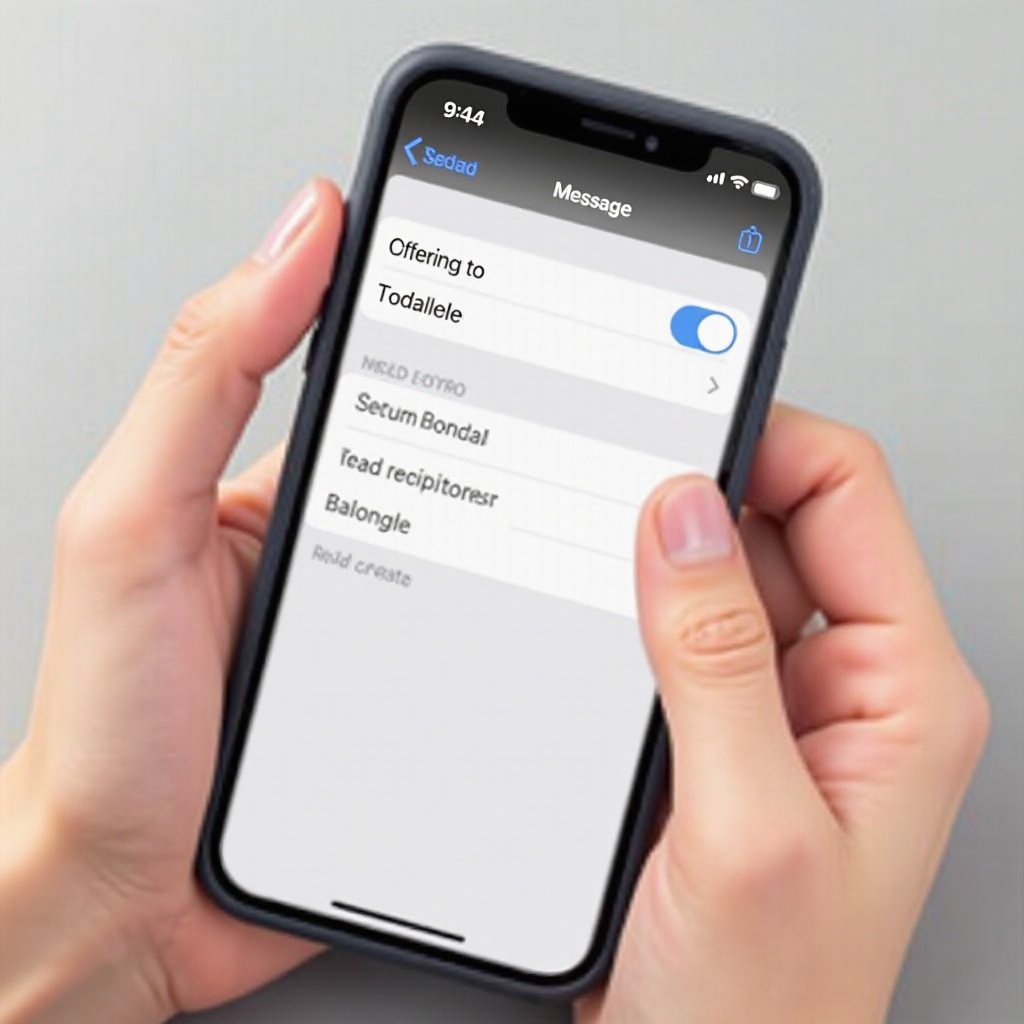
You might occasionally want read receipts enabled for certain conversations, such as with family members or close friends. Here’s how to customize this feature:
- Leaving Read Receipts On for Select Contacts:
- Open the Messages app and select a conversation.
- Tap the contact’s name or image to access contact settings.
-
Toggle ‘Send Read Receipts’ to on for that specific contact.
-
Managing Expectations Through Personalization:
- Engage in open conversations with these specific contacts about this setting, which helps to manage their expectations and your privacy needs.
By selectively choosing whom to enable read receipts for, you balance privacy with communication. Now, let’s consider the broader privacy and etiquette factors affected by these settings.
Privacy and Communication Considerations
Adjusting read receipts involves decisions beyond personal preferences; it affects how you interact with others. Consider these factors:
- Understanding the Privacy Implications:
-
Disabling read receipts can enhance privacy, giving you more control over your response time, especially in professional or high-pressure situations.
-
Balancing Etiquette and Personal Preferences:
- It’s important to clearly communicate your decision to disable read receipts to avoid confusion or perceived disinterest in relationships.
By understanding the impact on privacy, you ensure your adjustments to read receipts do not inadvertently affect relationships or communication clarity. As you navigate these adjustments, you may encounter problems that require troubleshooting.
Troubleshooting Common Issues
Sometimes technical glitches might prevent successful implementation of read receipt preferences. Here’s how to address common issues:
- Read Receipts Not Turning Off:
-
Ensure your iOS is updated. Software improvements often resolve feature malfunctions.
-
Resetting Network Settings:
- For persistent issues, try resetting network settings by going to ‘Settings’ > ‘General’ > ‘Reset’ > ‘Reset Network Settings.’ Note this will erase saved Wi-Fi networks.
By following these troubleshooting steps, you can maintain functionality and ensure your read receipts are working as intended. With these technical issues managed, consider additional steps for protecting your privacy.
Advanced Tips to Enhance Privacy
For users seeking additional privacy, consider the following measures:
- Additional iOS Privacy Settings:
-
Explore ‘Privacy’ settings on your device to manage location services and app-specific data sharing.
-
Alternative Communication Methods:
- Evaluate other messaging apps that may offer stronger privacy controls or customizable settings.
By implementing these advanced strategies, you can further protect your privacy while managing your digital communication more effectively. Let’s summarize what we’ve covered.
Conclusion
Managing iMessage read receipts gives you significant control over your communication style and privacy. By following this comprehensive guide, you’ve learned how to disable read receipts for all contacts or selectively, considered the privacy and etiquette ramifications, and addressed potential technical issues. Use these insights to create an optimal messaging environment that meets your personal and professional needs.
Frequently Asked Questions
Can I turn off read receipts for only certain messages or conversations?
Unfortunately, iMessage does not allow the option to customize read receipts for individual messages or conversations, only contacts.
Will turning off read receipts affect message delivery notifications?
No, turning off read receipts will not influence the delivery notifications that let you know when a message has been delivered to its recipient.
Do read receipts work similarly across all Apple devices?
Generally, yes. Read receipts function consistently across Apple’s ecosystem, provided all devices are updated to the latest software version.